
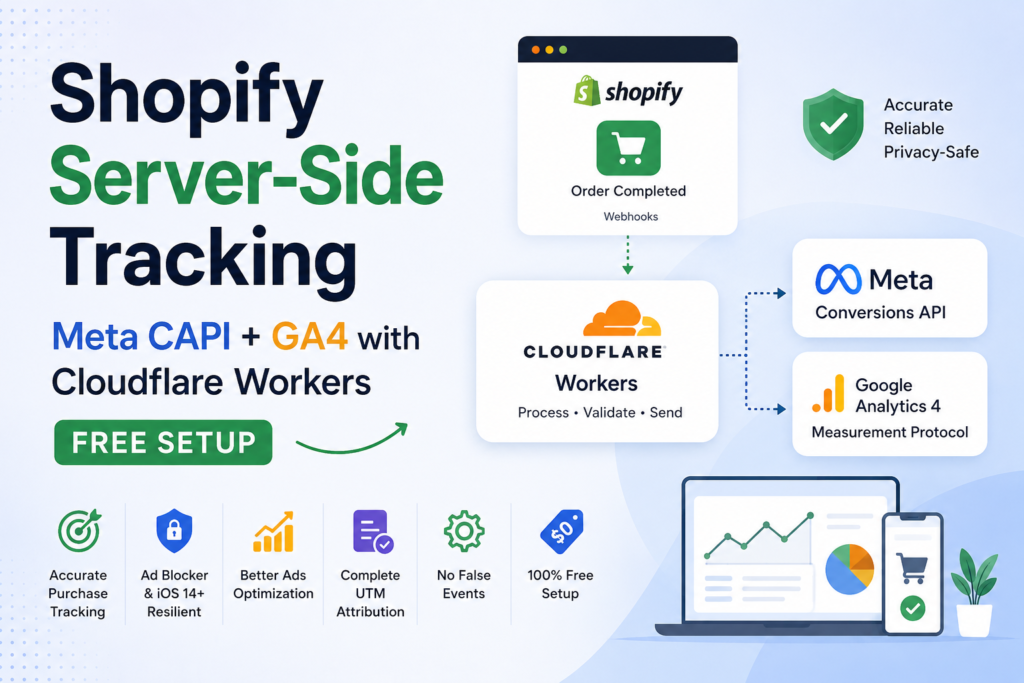
If you’re running a Shopify store and spending money on Meta Ads or Google Ads, you’re probably losing a significant amount of conversion data without even realizing it.
iOS 14+ changed everything. Apple’s App Tracking Transparency framework caused Meta Pixel to miss anywhere between 40–60% of conversions. Add browser-based ad blockers and cookie restrictions, and your campaign data becomes increasingly unreliable — leading to poor algorithmic optimization and wasted ad spend.
The solution is Server-Side Tracking.
In this guide, I’ll walk you through exactly how we set up a complete server-side tracking system on a Shopify Basic plan — using Cloudflare Workers (free) as the middleware — to send accurate Purchase events to both Meta Conversions API and GA4 Measurement Protocol.
No paid servers. No complex infrastructure. Just free tools working together.
Why Browser-Based Tracking Is Failing
- iOS 14+ Privacy Changes
Apple’s ATT prompt allows users to opt out of cross-app tracking. This caused Meta Pixel accuracy to drop dramatically overnight for most advertisers. - Ad Blockers
Studies suggest over 30% of internet users run ad blockers, which completely block browser-based pixels from firing. - Cookie Restrictions
Safari already blocks third-party cookies. Firefox does too. Chrome is following. This means `_fbp` and `_ga` cookies have shorter lifespans and reduced accuracy. - The Draft Orders Problem
A very common issue with Shopify’s native Facebook & Instagram app — it tracks draft orders as Purchase events, sending false conversion signals to Meta and inflating your reported ROAS.
The Architecture
Here’s the full picture of how everything connects:
Customer visits store
↓
theme.liquid runs on every page
→ Captures GA4 Client ID (_ga cookie)
→ Captures Meta FBP / FBC cookies
→ Captures UTM parameters from URL
→ Saves everything to cart attributes
↓
Customer completes checkout
↓
Shopify automatically copies cart attributes
into order note_attributes
↓
Shopify fires "Order Payment" Webhook
↓
Cloudflare Worker receives the webhook
→ Filters: only paid + web orders pass
→ Reads note_attributes (GA4 ID, FBP, UTMs)
→ SHA256 hashes customer PII
→ Calls Meta CAPI
→ Calls GA4 Measurement Protocol
↓
Meta Ads Manager ✅   Google Analytics ✅
Tools Used (All Free)
| Tool | Purpose | Cost |
|---|---|---|
| Cloudflare Workers | Run server-side code | Free (100k req/day) |
| Meta Conversions API | Server-side purchase tracking | Free |
| GA4 Measurement Protocol | Server-side GA4 events | Free |
| Shopify Webhooks | Receive order events | Free on Basic plan |
| Shopify theme.liquid | Capture browser-side data | Free |
Step 1 — Capture Browser Data (theme.liquid)
The biggest challenge with server-side tracking is that some data only exists in the browser:
- GA4 Client IDstored in the `_ga` cookie
- Meta FBPstored in the `_fbp` cookie
- Meta FBCstored in the `_fbc` cookie (built from `fbclid` URL parameter)
- UTM Parametersonly present in the URL on the landing page visit
Shopify has a powerful built-in feature: cart attributes are automatically copied into order `note_attributes` when a customer checks out. We use this to bridge browser data to the server.
Add the following code to `theme.liquid` just before the `</head>` tag:
Shopify Admin → Online Store → Themes → Edit Code → theme.liquid
html
<script>
(function() {
function getCookieMatch(pattern) {
var m = document.cookie.match(pattern);
return m ? String(m[1]) : null;
}

// GA4 Client ID from _ga cookie
var clientId = getCookieMatch(/_ga=GA\d+\.\d+\.(\d+\.\d+)/);

// Meta FBP and FBC cookies
var fbp = getCookieMatch(/_fbp=(fb\.\d+\.\d+\.\d+)/);
var fbc = getCookieMatch(/_fbc=(fb\.[^;]+)/);

// UTM parameters — only available on landing page
// Save to sessionStorage so they persist through checkout
var params = new URLSearchParams(window.location.search);
if (params.get('utm_source')) {
sessionStorage.setItem('utm_source', params.get('utm_source') || '');
sessionStorage.setItem('utm_medium', params.get('utm_medium') || '');
sessionStorage.setItem('utm_campaign', params.get('utm_campaign') || '');
sessionStorage.setItem('utm_content', params.get('utm_content') || '');
sessionStorage.setItem('utm_term', params.get('utm_term') || '');
sessionStorage.setItem('utm_id', params.get('utm_id') || '');
}

var attrs = {};
var ss = sessionStorage;

if (clientId) attrs.ga4_client_id = clientId;
if (fbp) attrs._fbp = fbp;
if (fbc) attrs._fbc = fbc;
if (ss.getItem('utm_source')) attrs.utm_source = ss.getItem('utm_source');
if (ss.getItem('utm_medium')) attrs.utm_medium = ss.getItem('utm_medium');
if (ss.getItem('utm_campaign')) attrs.utm_campaign = ss.getItem('utm_campaign');
if (ss.getItem('utm_content')) attrs.utm_content = ss.getItem('utm_content');
if (ss.getItem('utm_term')) attrs.utm_term = ss.getItem('utm_term');
if (ss.getItem('utm_id')) attrs.utm_id = ss.getItem('utm_id');

if (Object.keys(attrs).length === 0) return;

// Save to cart attributes
fetch('/cart/update.js', {
method: 'POST',
headers: { 'Content-Type': 'application/json' },
body: JSON.stringify({ attributes: attrs })
});
})();
</script>
How this Works
- Script runs on every page load.
- Reads cookies and UTM parameters from the browser.
- UTM values are stored in
sessionStorageso they persist across page navigation. - All attribution data is pushed to cart attributes using
/cart/update.js. - When the customer completes checkout, Shopify automatically copies the cart attributes to
order.note_attributes. - The Cloudflare Worker receives the order webhook and reads the attribution data from the webhook payload.
Step 2 — Set Up Cloudflare Worker
2.1 Create a Free Account
Sign up at cloudflare.com. The free plan includes up to 100,000 Worker requests per day, which is more than sufficient for most Shopify stores.2.2 Create the Worker
- Go to Workers & Pages → Create → Start with Hello World.
- Name the Worker:
shopify-tracking-worker. - Click Deploy.
- Open Edit Code and replace the default code with the following:
2.3 The Worker Code
const META_ACCESS_TOKEN = 'YOUR_META_ACCESS_TOKEN';
const META_PIXEL_ID = 'YOUR_PIXEL_ID';
const GA4_MEASUREMENT_ID = 'G-XXXXXXXXXX';
const GA4_API_SECRET = 'YOUR_GA4_API_SECRET';

export default {
async fetch(request, env) {

// Handle CORS preflight
if (request.method === 'OPTIONS') {
return new Response(null, {
headers: {
'Access-Control-Allow-Origin': '*',
'Access-Control-Allow-Methods': 'POST',
'Access-Control-Allow-Headers': 'Content-Type'
}
});
}

if (request.method !== 'POST') {
return new Response('Method not allowed', { status: 405 });
}

try {
const body = await request.json();
const order = body.order || body;

// Filter 1: Only process paid orders
if (order.financial_status !== 'paid') {
return new Response(JSON.stringify({
status: 'skipped',
reason: `Order status: ${order.financial_status}`
}), { headers: { 'Content-Type': 'application/json', 'Access-Control-Allow-Origin': '*' } });
}

// Filter 2: Only process online orders
// This blocks POS, draft orders, and admin-created orders
if (order.source_name !== 'web') {
return new Response(JSON.stringify({
status: 'skipped',
reason: `Non-web order skipped — source: ${order.source_name}`
}), { headers: { 'Content-Type': 'application/json', 'Access-Control-Allow-Origin': '*' } });
}

// Read note_attributes (captured from browser via cart attributes)
const attributes = order.note_attributes || [];
const getAttr = (key) => attributes.find(a => a.name === key)?.value || null;

const gaClientId = getAttr('ga4_client_id');
const fbp = getAttr('_fbp');
const fbc = getAttr('_fbc');
const utmSource = getAttr('utm_source');
const utmMedium = getAttr('utm_medium');
const utmCampaign = getAttr('utm_campaign');
const utmContent = getAttr('utm_content');
const utmTerm = getAttr('utm_term');
const utmId = getAttr('utm_id');

// Customer and address data
const customer = order.customer || {};
const address = order.billing_address || order.shipping_address || {};

// Fallback to shipping address for guest checkouts
const firstName = customer.first_name || address.first_name || '';
const lastName = customer.last_name || address.last_name || '';
const phone = customer.phone || address.phone || order.phone || '';
const email = customer.email || order.email || '';
const city = address.city || '';
const zip = address.zip || '';
const country = address.country_code || '';

// SHA256 hashing — required by Meta for PII data
async function hashData(value) {
if (!value) return null;
const clean = value.toString().toLowerCase().trim();
const buf = await crypto.subtle.digest('SHA-256', new TextEncoder().encode(clean));
return Array.from(new Uint8Array(buf)).map(b => b.toString(16).padStart(2, '0')).join('');
}

const [hEmail, hPhone, hFname, hLname, hCity, hZip, hCountry] = await Promise.all([
hashData(email), hashData(phone), hashData(firstName),
hashData(lastName), hashData(city), hashData(zip),
country ? hashData(country.toLowerCase()) : null
]);

// Line items
const lineItems = (order.line_items || []).map(item => ({
item_id: item.sku || String(item.variant_id),
item_name: item.title,
price: parseFloat(item.price),
quantity: parseInt(item.quantity, 10)
}));

// GA4 Client ID — use captured value or generate fallback
const finalClientId = gaClientId ||
`${Math.floor(1000000000 + Math.random() * 9000000000)}.${customer.id || order.id}`;

// ── META CONVERSIONS API PAYLOAD ──
const metaPayload = {
data: [{
event_name: 'Purchase',
event_time: Math.floor(Date.now() / 1000),
event_id: `purchase_${order.id}`, // For deduplication
action_source: 'website',
event_source_url: 'https://your-store.myshopify.com',
user_data: {
...(hEmail && { em: [hEmail] }),
...(hPhone && { ph: [hPhone] }),
...(hFname && { fn: [hFname] }),
...(hLname && { ln: [hLname] }),
...(hCity && { ct: [hCity] }),
...(hZip && { zp: [hZip] }),
...(hCountry && { country: [hCountry] }),
...(fbp && { fbp }),
...(fbc && { fbc }),
},
custom_data: {
currency: order.currency || 'USD',
value: parseFloat(order.total_price || 0),
order_id: String(order.id),
content_type: 'product',
contents: lineItems.map(i => ({
id: i.item_id,
quantity: i.quantity,
item_price: i.price
}))
}
}],
access_token: META_ACCESS_TOKEN
};

// ── GA4 MEASUREMENT PROTOCOL PAYLOAD ──
const ga4Payload = {
client_id: finalClientId,
...(customer.id && { user_id: String(customer.id) }),
events: [{
name: 'purchase',
params: {
transaction_id: order.name, // e.g. #1234
value: parseFloat(order.total_price || 0),
currency: order.currency || 'USD',
tax: parseFloat(order.total_tax || 0),
shipping: parseFloat(order.shipping_lines?.[0]?.price || 0),
engagement_time_msec: 1,
...(utmId && { campaign_id: utmId }),
...(utmCampaign && { campaign: utmCampaign }),
...(utmSource && { source: utmSource }),
...(utmMedium && { medium: utmMedium }),
...(utmContent && { content: utmContent }),
...(utmTerm && { term: utmTerm }),
items: lineItems
}
}]
};

// ── SEND BOTH IN PARALLEL ──
const [metaRes, ga4Res] = await Promise.all([
fetch(`https://graph.facebook.com/v18.0/${META_PIXEL_ID}/events`, {
method: 'POST',
headers: { 'Content-Type': 'application/json' },
body: JSON.stringify(metaPayload)
}),
fetch(`https://www.google-analytics.com/mp/collect?measurement_id=${GA4_MEASUREMENT_ID}&api_secret=${GA4_API_SECRET}`, {
method: 'POST',
headers: { 'Content-Type': 'application/json' },
body: JSON.stringify(ga4Payload)
})
]);

const metaResult = await metaRes.json();
console.log('Meta Response:', JSON.stringify(metaResult));
console.log('GA4 HTTP Status:', ga4Res.status); // 204 = success

return new Response(JSON.stringify({
status: 'success',
meta: metaResult,
ga4_status: ga4Res.status
}), {
headers: { 'Content-Type': 'application/json', 'Access-Control-Allow-Origin': '*' }
});

} catch (err) {
console.error('Worker error:', err.message);
return new Response(JSON.stringify({
status: 'error',
message: err.message
}), {
status: 500,
headers: { 'Content-Type': 'application/json', 'Access-Control-Allow-Origin': '*' }
});
}
}
};
Step 3 — Configure Shopify Webhook
In your Shopify admin, navigate to:
Settings → Notifications → Webhooks → Create Webhook
| Event | Order payment (Critical: NOT “Order creation”) |
|---|---|
| Format | JSON |
| URL | https://your-worker.workers.dev |
Using Order payment instead of Order creation is important because the webhook only fires after payment has been successfully confirmed. This helps filter out most draft, abandoned, and pending orders.
Step 4 — Get Your Meta Access Token
- Open Business Manager → Events Manager.
- Select your Meta Pixel.
- Click Settings → Generate Access Token.
- Copy the generated token.
- Paste the token into your Cloudflare Worker code.
Step 5 — Get Your GA4 API Secret
- Open Google Analytics → Admin → Data Streams.
- Select your website data stream.
- Navigate to Measurement Protocol API Secrets.
- Click Create.
- Provide a name for the secret and save it.
- Copy the generated secret value.
- Paste the secret into your Cloudflare Worker code.
Key Technical Decisions Explained
Why Filter by source_name !== 'web'?
Shopify’s order.source_name field tells you exactly where an order originated.
| Value | Source |
|---|---|
web |
Online Store ✅ |
pos |
Point of Sale |
draft_orders |
Draft Order |
admin |
Manually Created in Admin |
580111 |
Facebook / Instagram Shop |
755357713 |
Google Channel |
By allowing only web orders, POS sales, draft orders, admin-created orders, and marketplace orders are excluded from purchase tracking. This prevents false conversion events from being sent to Meta and GA4.
Why SHA256 Hash Customer Data?
Meta Conversions API requires personally identifiable information (PII) such as email addresses, phone numbers, names, and addresses to be hashed using SHA256 before transmission.
Hashing helps protect user privacy, aligns with Meta’s requirements, and supports GDPR best practices. Cloudflare Workers include the built-in crypto.subtle API, making it possible to generate SHA256 hashes without installing additional libraries.
How Does Deduplication Work?
When both browser-side tracking and server-side tracking are active, the same purchase can be recorded twice unless a deduplication strategy is implemented.
Meta Conversions API
- Use the same event ID in both browser and server events.
- Example:
purchase_123456789 - Meta automatically merges matching events and removes duplicates.
Google Analytics 4
- Use the same
transaction_idfor browser and server events. - Typically this is the Shopify order number (for example,
#1234). - GA4 automatically deduplicates purchases that share the same transaction ID.
Why Cart Attributes Instead of Checkout Extensibility?
Shopify’s Checkout Extensibility framework restricts access to many checkout-level customization options that were previously available through checkout.liquid.
Cart attributes provide a reliable alternative because they automatically flow into order.note_attributes after checkout completion.
This approach:
- Works on Shopify Basic plans
- Requires no paid apps
- Uses a stable and well-documented Shopify feature
- Preserves attribution data throughout the purchase journey
The client_id Fallback Strategy
In some situations, browser cookies may be blocked or a GA4 client ID may not be available. Since the GA4 Measurement Protocol requires a valid client_id, a fallback value can be generated dynamically.
const finalClientId = gaClientId ||
  `${Math.floor(1000000000 + Math.random() * 9000000000)}.${customer.id || order.id}`;
This ensures every Measurement Protocol request contains a valid client ID, allowing purchase events to be accepted and processed by GA4 even when cookie-based identifiers are unavailable.
Testing the Setup
1. Verify Cart Attributes Are Saving
Open your Shopify store in a browser, launch Developer Tools (F12), and run the following command in the Console:
fetch('/cart.js')
  .then(r => r.json())
  .then(c => console.log('Cart attributes:', c.attributes))
Expected Result:
{
  ga4_client_id: "123456789.987654321",
  _fbp: "fb.1.1234567890.123456789"
}
2. Test UTM Capture
Visit your store using a URL that contains UTM parameters:
https://your-store.com/?utm_source=google&utm_medium=cpc&utm_campaign=test
Run the cart attribute check again. You should now see values such as
utm_source, utm_medium, and utm_campaign
inside the cart attributes.
3. Verify Order Note Attributes
Place a test order and navigate to:
Shopify Admin → Orders → [Your Test Order]
Scroll to the Additional Details section. All captured attribution values should appear there as order note attributes.
4. Check Cloudflare Worker Logs
Navigate to:
Cloudflare Dashboard → Workers → Your Worker → Logs → Real-time Logs
Send a test webhook from Shopify:
Settings → Notifications → Webhooks → Send Test
Watch the logs for a successful response similar to:
{
  "status": "success",
  "meta": { "events_received": 1 },
  "ga4_status": 204
}
5. Verify in Meta Events Manager
Open Events Manager → Test Events and place a real test order.
Confirm that a Purchase event appears and that the Event Match Quality score is healthy.
Results You Can Expect
| Metric | Before | After |
|---|---|---|
| Meta Event Match Quality | Low | High |
| Purchase Event Accuracy | ~60% | ~90–95% |
| Draft Order False Events | Yes ❌ | No ✅ |
| POS Order False Events | Yes ❌ | No ✅ |
| GA4 UTM Attribution | Partial | Complete ✅ |
| iOS 14+ Resilience | Poor | Strong ✅ |
| Monthly Cost | Varies | $0 ✅ |
Common Issues and Fixes
Cart Attributes Are Empty ({})
GA4 or the Meta Pixel may not have loaded when the tracking script executed. The script can only capture cookies that already exist, so verify that both browser-side tracking implementations are installed and firing correctly.
Cloudflare Worker Returns a 500 Error
Check the Real-time Logs in Cloudflare. A common cause is that Shopify test webhooks sometimes use a slightly different payload structure than live orders.
The body.order || body fallback should handle most payload variations.
GA4 Returns 204 but No Events Appear
The GA4 Measurement Protocol returns a 204 response even when event
validation fails.
For troubleshooting, temporarily replace:
mp/collectwith:
debug/mp/collectReview the validation response for any errors or warnings.
Meta Error: “Insufficient Customer Information”
This usually occurs when a customer checks out as a guest and the customer object contains little or no information.
Falling back to data from shipping_address for names and phone
numbers typically resolves the issue and improves Event Match Quality.
Conclusion
Server-side tracking is no longer limited to enterprise brands with dedicated engineering teams.
By combining Shopify Webhooks, Cloudflare Workers’ free tier, and a lightweight
theme.liquid implementation, store owners can build accurate and reliable
conversion tracking without additional software costs.
This setup provides:
- ✅ Accurate purchase tracking that remains resilient against ad blockers and iOS privacy restrictions
- ✅ Better Meta Ads optimization through improved Event Match Quality
- ✅ Complete GA4 attribution, including UTM campaign data
- ✅ Elimination of false conversion events from draft orders and POS sales
- ✅ GDPR-friendly data handling using SHA256 hashing
- ✅ Zero ongoing monthly software costs
Browser-side pixels and server-side tracking are most effective when used together. Browser tracking supports audience creation and remarketing, while the server-side layer ensures purchase conversions are captured accurately and consistently.
Implementation Notes:
- Shopify Basic plan was used for testing.
- Cloudflare Workers Free Tier (100,000 requests per day) was sufficient for all tracking operations.
- No third-party Shopify apps were required.
- No paid server-side tracking platforms or middleware services were used.
Need Help Implementing Server-Side Tracking?
Whether you're running Shopify, Shopify Plus, or a custom eCommerce stack, proper server-side tracking can significantly improve attribution accuracy, campaign optimization, and reporting reliability.
Request a Consultation